
The News Reader 365
How to Remove Saved Passwords: क्या आप अपने ब्राउज़र में पासवर्ड और उपयोगकर्ता नाम सेव करते हैं? इस एक गलती से हो सकते हैं लीक
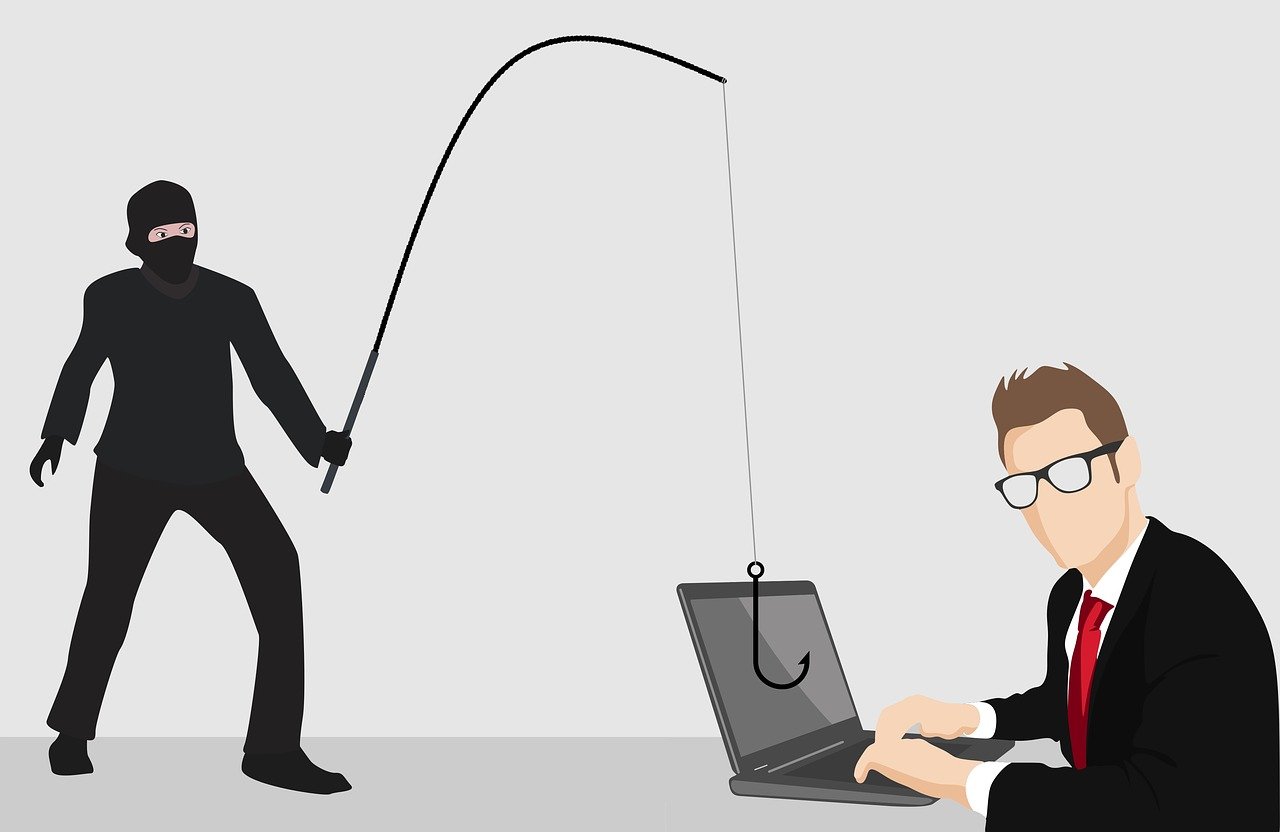
क्या आप अपने ब्राउज़र में पासवर्ड और उपयोगकर्ता नाम सेव करते हैं? यह एक गलती से चोरी हो सकते हैं।
सेव किए गए पासवर्ड को कैसे हटाएँ: क्या आप अपने लैपटॉप या फ़ोन में पासवर्ड सेव करके रखते हैं? आपकी कुछ गलतियों के कारण ये पासवर्ड चोरों या किसी अनधिकृत व्यक्ति के हाथ लग सकता है। दरअसल, सेव पासवर्ड के साथ यूज़र्स को कुछ बातों का ध्यान रखना जरूरी होता है। कई एक्सटेंशन्स पासवर्ड चोरी कर सकते हैं। आइए जानते हैं आप किस तरह से अपने पासवर्ड को सुरक्षित रख सकते हैं।
आपके सेव किए गए पासवर्ड हो सकते हैं चोरी!
सोशल मीडिया या किसी अन्य प्लेटफ़ॉर्म पर अकाउंट हो या न हो, हमें सभी के लिए पासवर्ड क्रिएट करने होते हैं। एक अच्छी प्रैक्टिस के तहत यूज़र्स को एक ही पासवर्ड यूज़ नहीं करने चाहिए। क्योंकि ऐसे में एक अकाउंट के हैक होने पर सभी अकाउंट जोखिम में आ जाते हैं। वहीं बहुत से यूज़र्स अपने पासवर्ड को ब्राउज़र में ही सेव करते हैं।
चूंकि, किसी यूज़र के लिए सभी क्रेडेंशियल्स को याद रख पाना मुश्किल होता है। ऐसे में ब्राउज़र्स ने हमारी इसी समस्या को सुलझाने के लिए पासवर्ड मैनेजर का फीचर दिया है। यानी जब भी आप किसी वेबसाइट पर लॉग-इन करेंगे तो स्क्रीन पर एक "सेव पासवर्ड" का ऑप्शन आएगा।
बहुत से लोग पासवर्ड को ब्राउज़र में सेव करते हैं, ताकि अगली बार लॉग-इन करते समय फिर यूज़रनेम-पासवर्ड री-एंटर ना करना पड़े। यह फीचर सुविधाजनक तो है, लेकिन इसका उपयोग करना खतरे से भरा है। आइए इसकी विस्तृत जानकारी जानते हैं।
- क्या हो सकती हैं दिक्कतें?
- दरअसल, जब भी आप ब्राउज़र में पासवर्ड सेव करते हैं, तो वह आपके उपयोगकर्ता नाम, पासवर्ड, बिलिंग विवरण और कई बार क्रेडिट कार्ड नंबर भी सेव कर लेता है। चूंकि ज्यादातर यूज़र्स ब्राउज़र में 2-फैक्टर ऑथेंटिकेशन, फिंगरप्रिंट स्कैन, वन टाइम वेरिफ़िकेशन कोड जैसे सुरक्षा फीचर्स को ऑन नहीं रखते हैं।
इस तरह से, अगर किसी के हाथ में आपका डिवाइस लग जाता है, तो वह आपके क्रेडेंशियल्स को चोरी कर सकता है। सेव किए गए पासवर्ड्स के लिए लापरवाही ही नहीं, बल्कि कई अन्य खतरे भी हैं। ब्राउज़र में इंस्टॉल होने वाले कई एक्सटेंशन्स में मेलवेयर छिपे होते हैं। ये मेलवेयर आसानी से सेव किए गए उपयोगकर्ता नाम-पासवर्ड को चुरा सकते हैं।
सेव किए गए पासवर्ड को कैसे हटाएं?
यदि आपने उपयोगकर्ता नाम-पासवर्ड सेव कर रखे हैं, तो परेशान न हों। बड़ी आसानी से आप उन्हें हटा सकते हैं। निम्नलिखित चरणों का पालन करें:
- यदि आप Google Chrome उपयोग कर रहे हैं, तो दाएं ओर दिए गए तीन डॉट्स पर क्लिक करें।
- मेन्यू में सेटिंग्स विकल्प पर जाएं।
- यहां आपको "पासवर्ड मैनेजर" टैब खोलना होगा।
- स्क्रॉल करने पर आपको सेव किए गए पासवर्ड्स की सूची दिखेगी।
- यहां से आप सेव किए गए पासवर्ड्स को हटा सकते हैं।
आप Firefox ब्राउज़र के लिए भी इसी तरीके का पालन कर सकते हैं। यदि आपके पास मैक है और आप Safari ब्राउज़र का उपयोग करते हैं, तो चरणों में थोड़ी बदलाव करने होंगे। शीर्ष बाएं कोर्नर में दिए गए Apple मेन्यू को खोलें। सेटिंग्स पर जाने के बाद, सिस्टम प्राथमिकता टैब खोलें। यहां आपको "पासवर्ड" टैब दिखेगा, उसे खोलें और अपना Mac उपयोगकर्ता पासवर्ड दर्ज करें। यहां आपको सेव किए गए पासवर्ड्स को हटाने का ऑप्शन मिलेगा।
Do you save passwords and usernames on your browser? It can be risky as it can lead to theft or unauthorized access. Users need to be mindful when it comes to saving passwords. Several extensions can steal passwords. Let's find out how you can secure your passwords.
Your saved passwords can be stolen!
Whether it's social media or any other platform, we all need to create passwords for our accounts. As a good practice, users should avoid using the same password for all accounts because if one account gets hacked, all accounts are at risk. Many users save their passwords on their browsers.
Since it can be difficult for users to remember all their credentials, browsers have provided a password manager feature. Whenever you log in to a website, you get an option to save the password on the screen.
Many people save passwords on their browsers so that they don't have to re-enter the username and password the next time they log in. While this feature is convenient, using it can be risky. Let's explore the details.
What could go wrong?
When you save passwords in a browser, it not only saves your username and password but also stores billing details and, in some cases, even credit card numbers. Since most users don't enable security features like two-factor authentication, fingerprint scan, or one-time verification code on browsers, it becomes easier for anyone who gains access to your device to steal your credentials. Saving passwords carelessly exposes you to various risks. Additionally, many extensions installed in browsers can hide malware. These malwares can easily steal saved usernames and passwords.
How to remove saved passwords?
If you have saved usernames and passwords, don't worry. You can easily delete them. Follow these steps
- If you are using Google Chrome, click on the three dots on the right side.
- Go to the Settings option in the menu.
- Open the Password Manager tab.
- Scroll down to see the list of websites with saved passwords.
- From here, you can remove saved passwords.
You can follow similar steps for the Firefox browser as well. If you have a Mac and use Safari browser, the steps are slightly different. Open the Apple menu given at the top left corner. After going to Settings, open the System Preferences tab. Here, you will find the Passwords tab. Open it and enter your Mac user password. You will find an option to delete saved passwords.
By following these steps, you can remove saved passwords and enhance the security of your accounts.